How to Install a Cloud Backup Agent
The first step in the cloud backup process is installing a backup agent. The backup agent is a piece of software used to manage the cloud backup process on the device you wish to backup. Backup agents are available on a variety of operating systems including Windows, Mac, Linux, iOS, and more.
This article will outline how to install a backup agent using the ServerMania Cloud Backup, powered by Acronis.
Windows & macOS (recommended: install from portal)
Step 1: Login to the cloud backup portal
Visit our cloud backup portal and login using the credentials supplied to you.
Step 2: Click Backup
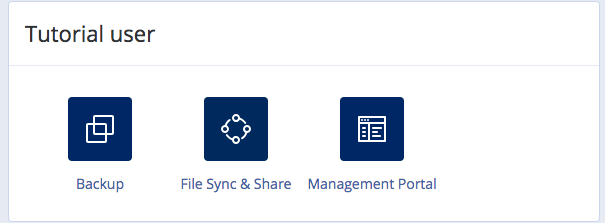
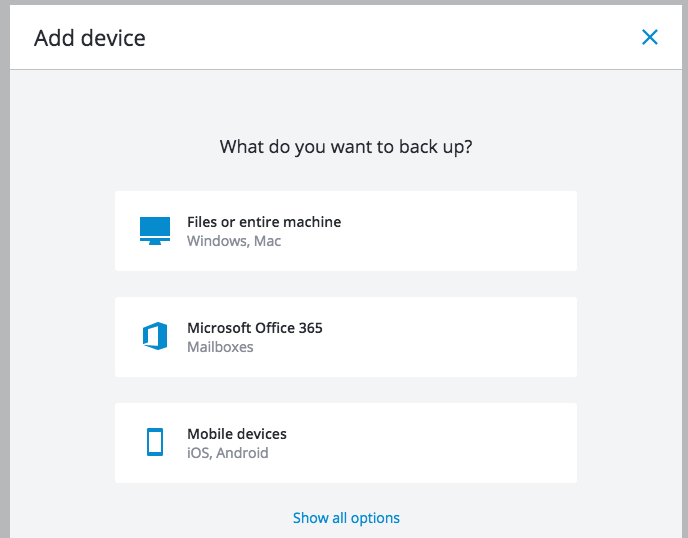
Step 3: Select the device you wish to backup
In this case, we’ll backup the files on a Mac computer.
Step 4: Select the Operating System
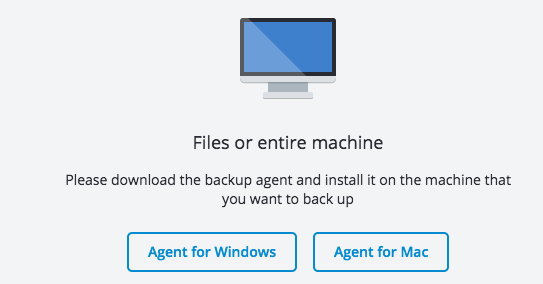
Step 5: Download and install the backup agent
Once you select the Operating System, the backup agent file will download in your browser. Open the file and complete the installation of the agent.
The installation will conclude with a device registration, which loads the backup console page and adds the machine to your management panel.
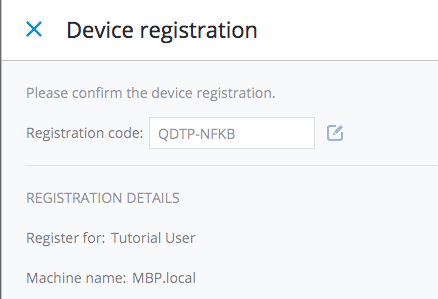
The backup agent is now installed, and the device is now available for creating a backup plan, managing backups, and recovering files!
Linux servers (Ubuntu/Debian and REHL-based)
Step 1: SSH to your server
Login to SSH on your server:
ssh root@IP-AddressStep 2: Install required dependencies
Ubuntu / Debian
sudo apt-get update
sudo apt-get install -y linux-headers-$(uname -r) linux-image-$(uname -r) gcc make perl
RHEL / CentOS / AlmaLinux / Rocky
sudo yum install -y kernel-devel-$(uname -r) gcc make perl elfutils-libelf-develStep 3: Download and Install the Backup Agent
https://backup.servermania.com/download/u/baas/4.0/26.6.42608/CyberProtect_AgentForLinux_x86_64.bin
chmod +x Backup_Agent_for_Linux_x86_64.bin
sudo ./Backup_Agent_for_Linux_x86_64.bin
Step 4: Register the Backup Agent
The installer will provide a registration URL and code. Visit this website in your browser and enter the device code to register your backup agent. The backup agent is now installed, and the device is now available for creating a backup plan, managing backups, and recovering files!
➡️ Next Step: Creating a Cloud Backup Plan
Was this page helpful?
About the author